What the Nevia web console is for, and when to reach for it instead of the CLI or MCP
The console is the web UI for Nevia at console.nevia.cloud. It works on the same workspaces, computers, databases and operations as the CLI and MCP.
Everything you can do in the console you can also do from the CLI or MCP. The console is for doing it in a browser: create and branch resources, read connection details, see what your agents did, and clean up.
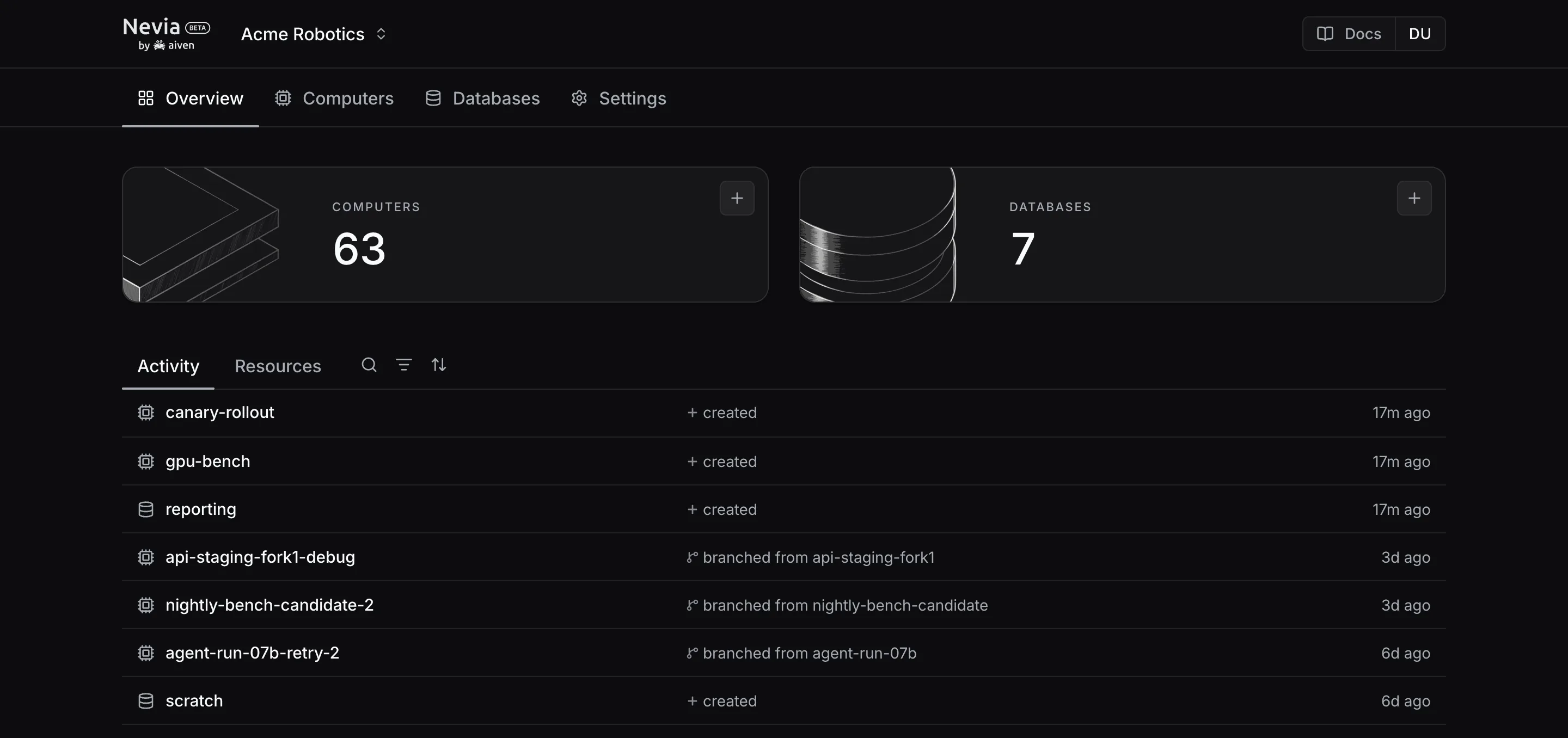
What the console includes
- A workspace menu at the top. It lists your workspaces with your role in each, and everything below is scoped to the selected one.
- Overview: a count per kind of resource, and an activity feed of created, branched, restored, deleted and failed events.
- Computers: the list with each computer's lineage tree, and a detail page with its URL, image, ports and checkpoints. Create, branch, sleep, wake, protect and delete.
- Databases: the list, and a detail page per database with its connection URI, a code snippet per client, and a prompt for an agent. Create, branch, sleep, wake, protect and delete.
- Settings: rename the workspace, manage members and roles, manage the workspace's secrets and variables, delete the workspace.
When to use the console instead of the CLI or MCP
Agents and scripts drive Nevia through the CLI or MCP.
People use the console to see the state of a workspace, inspect connection details, and clean up what they no longer need. The choice is about who is acting, not about what is possible.
Working alongside your agents
The console and your agents act on the same resources. A database an agent branched from the CLI appears in the list as soon as the operation completes. A computer you delete in the console is gone for the agent too.
The activity feed on Overview shows what an agent did in a workspace.
The Agent tab on a database's Connect card gives you a prompt with the connection details, so you can hand a database to an agent without copying values by hand.
Who can do what
Your role in the selected workspace decides which actions the console offers. Viewers read, editors create, branch and delete, admins also manage members and the workspace itself.
The full matrix is in Workspace permissions.
Guardrails against mistakes
Deleting a database or a computer removes its data, so the console asks you to confirm every delete.
Turn on Protected for a resource that must survive an agent's cleanup. The console and the API refuse to delete it until you turn protection off.
Sleeping a resource keeps its data and stops it from running. Use it when you only want to pause work.